
Editing a User Access Account
- Go to the User Access Management Main View and find the account you want to update.
- Click the Edit button beside the account.

- The Edit Account form will appear, which is basically the same as the Add Account form. From here, you can make the updates you need.
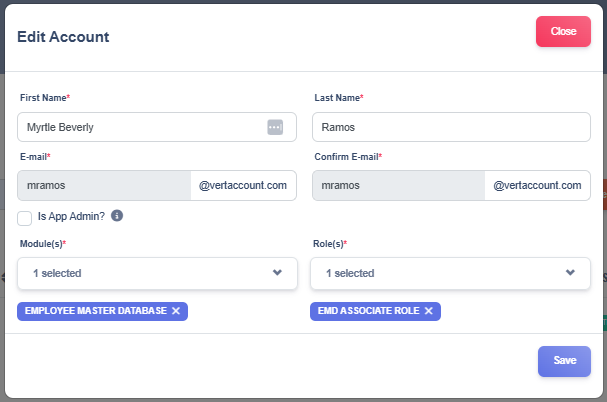
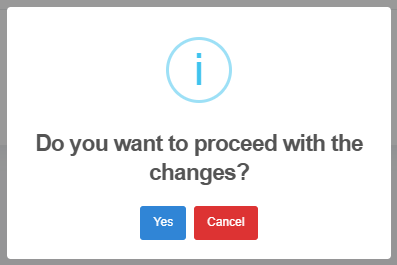
- After editing the account click Save, the system will ask for confirmation: Do you want to proceed with the changes?
- Select Yes to save the updates or Cancel if you decide not to apply the changes.
- A dialog box will appear asking you to “Enter Edit Reason.”
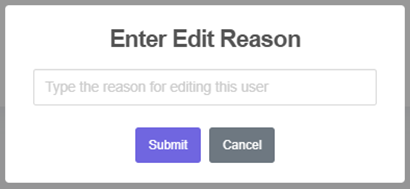
- Type in the reason why you are editing the record. (This field is required.)
- Click Submit to continue.