
Disabling VA Personal Record
- Go to the VA Personal Record Main View and find the record you want to disable.
- Click the Disable button beside the employee’s name.

- This opens the Disable Personal Record dialog.
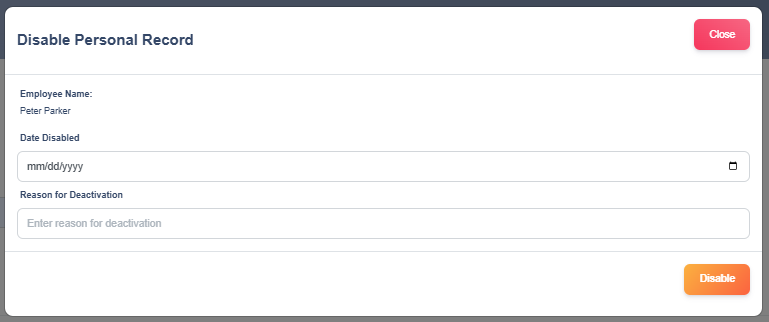
- In the dialog, confirm the Employee Name to ensure you’re working on the correct record.
- Use the date picker to select the date the record should be marked as disabled (format mm/dd/yyyy).
- In the Reason for Deactivation field enter the reason the record is disabled.
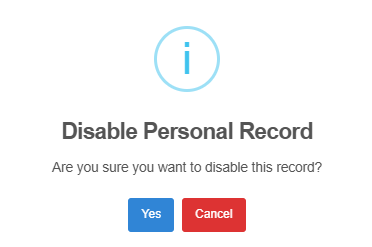
- If you’re ready, click the Disable button in the dialog to proceed. Then click Yes to verify.
- Check the VA Personal Record Main View to confirm the record status now shows as Inactive.
Reactivating VA Personal Record
- Go to the VA Personal Record Main View and find the record you want to reactivate.
- Click the Reactivate button beside the employee’s name.

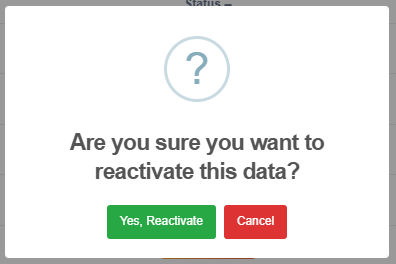
This opens a dialog box, click the Yes, Reactivate button to reactivate the record or Cancel if you decide not to proceed.
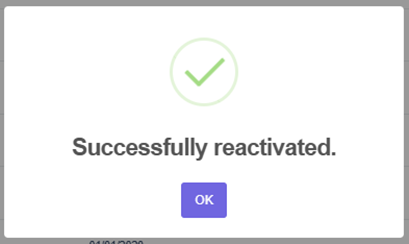
A success modal will appear to confirm that the record has been reactivated.
Check the VA Personal Record Main View to confirm the record status now shows as Active.