
Disabling Employee Employment Record
- Go to the Employee Employment Record Main View and find the record you want to disable.
- Click the Disable button beside the employee’s name.

- This opens the Disable Employee Record dialog.
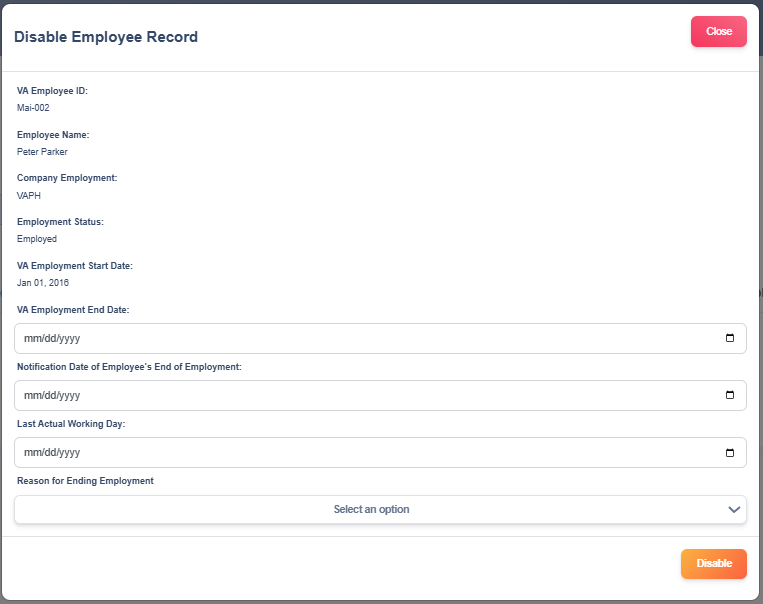
- In the dialog, confirm the Employee details to ensure you’re working on the correct record.
- Use the date picker to select the date the record should be marked as disabled (format mm/dd/yyyy).
- VA Employment End Date – date the employee’s record is formally terminated
- Notification Date of Employee’s End of Employment – date when the employee formally inform their resignation
- Last Actual Working Day – final day the employee worked for the company
- In the Reason for Ending Employment field, choose Resigned, Terminated, or End of Contract.
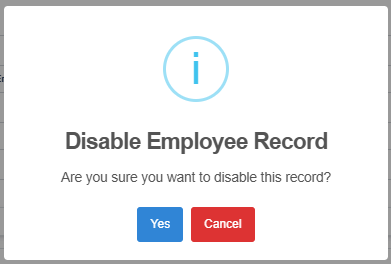
- If you’re ready, click the Disable button in the dialog to proceed. Then click Yes to verify.
- Check the Employee Employment Record Main View to confirm the record status now shows as Inactive.