
Managing Client Contract Member Assignment

Contents

    The Client Contract Member section is used to assign and maintain the members responsible for a contract.

    There are two key processes:

    • Add Member – Used to add as many Client Contract Members to a contract.
    • Disable Member – Used to remove a member assignment to a contract.

    Add Client Contract Member

    You can only add Client Contract Members when an ACC-CS Leader has already been assigned to the Client Contract.

    • To add an Client Contract Member, click the Add Member button
    • The system displays the Add Client Contract Member window
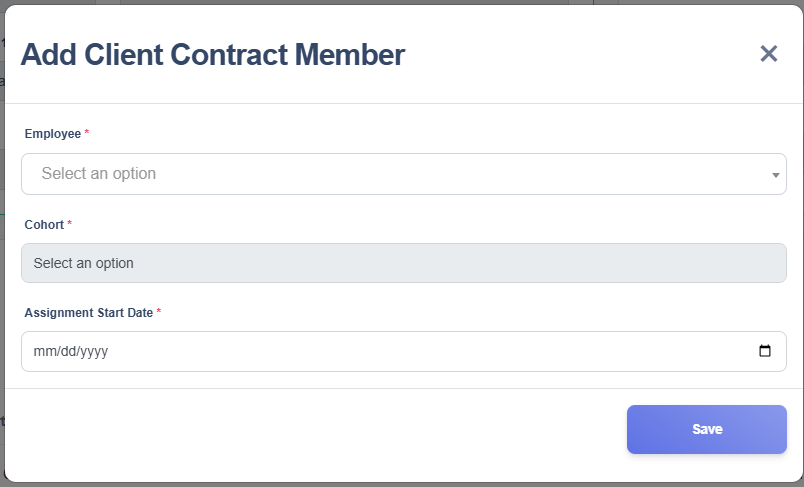
    • Select the Employee from the dropdown, listing all active employees.
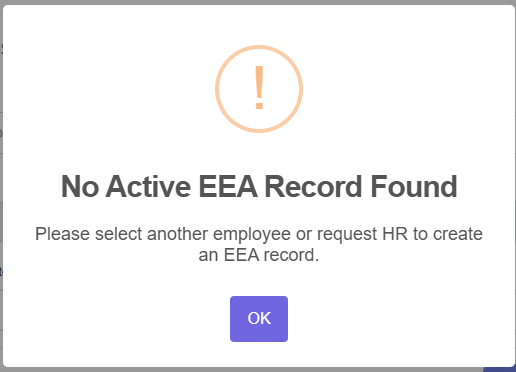
    If you see the warning “No Active EEA Record Found”, the selected employee does not have an active Employee Assignment record in EMD. You can either select a different employee or request HR to add an EEA record through a Wrike request.

    • For employees with multiple cohort, select the appropriate Cohort.
    • Enter the Assignment Start Date
    • Review the entered information for accuracy and click Save.
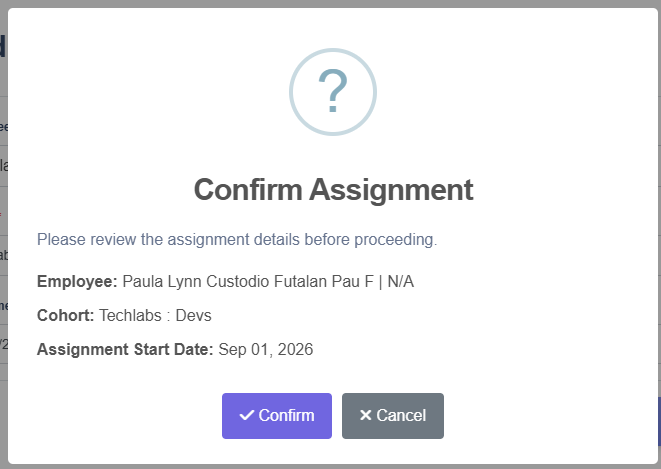
    • A confirmation dialog will appear, review the details and confirm by clicking Confirm button or Cancel if you decide not to proceed.
    • A success message will appear confirming that the Client Contract Member was added.
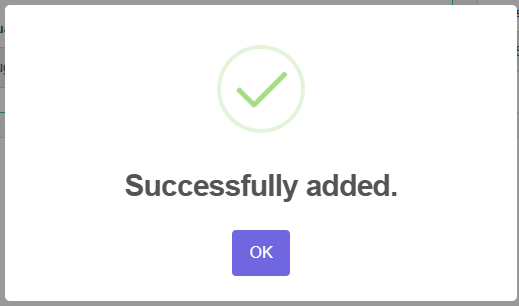
    • Click OK. The Client Contract Member is successfully assigned and displayed in the Client Contract Member section

    Disable Client Contract Member

    A Client Contract Member assignment can be deactivated for one of the following reasons:

    – Client Contract Assignment Removed – The employee is no longer assigned to the client contract and needs to be removed from the assignment.
    – Data Entry Correction – Correcting an incorrect client contract member assignment or assignment details.
    – End of Employment – The employee has left the company and can no longer be assigned to the client contract.
    – Team Transfer – The employee has been transferred to another team, contract, or assignment and needs to be removed from the current client contract.

    • To disable a Client Contract Member, click the Trash button under the User Action column
    • The system displays the Disable Client Contract Member window
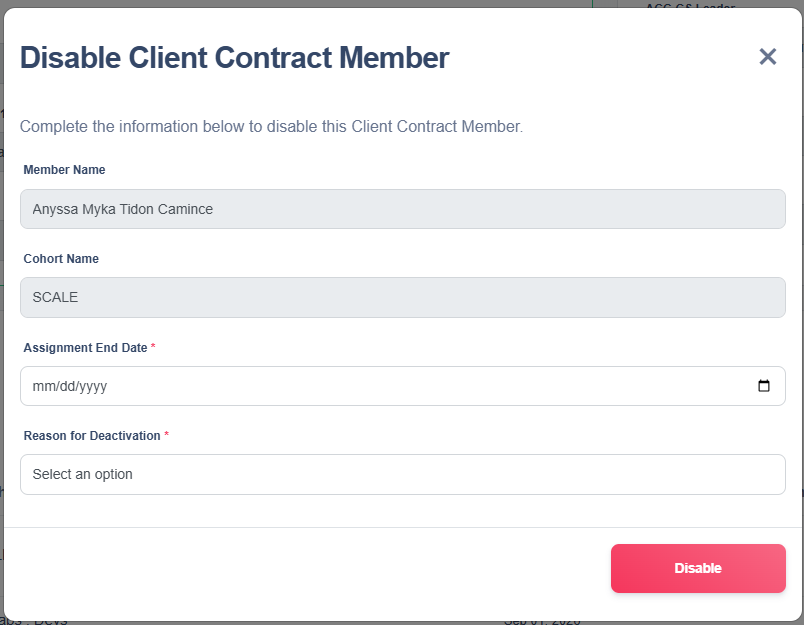
    • Enter the Assignment End Date for the Client Contract Member
    • Choose a Reason for Deactivation from the dropdown
    • If you are ready to proceed, click the Disable button.
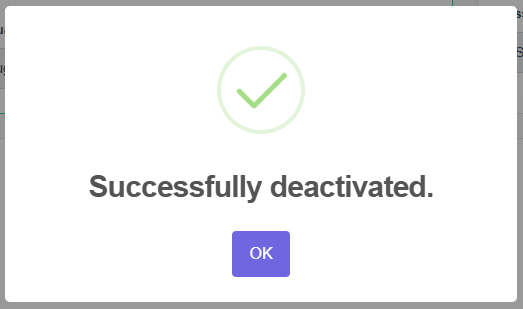
    • A success message will appear confirming that the Client Contract Member record has been deactivated.
    If a member is deactivated with the reason “Data Entry Correction”, they will be excluded from the Contract Member table.

    After managing all assignments (ACC-CS Leader and/or Client Contract Members), click the Done button in the upper-right corner of the Client Contract Team Assignments page. You will then be redirected to the Client Contract Team Assignment Main View.

    Updated on November 9, 2026
    Was this article helpful?