
Disabling Client Record
- Go to the Client Main View and locate the client you want to disable.

- Click the Disable button next to the client record. This opens the Disengage Client dialog.
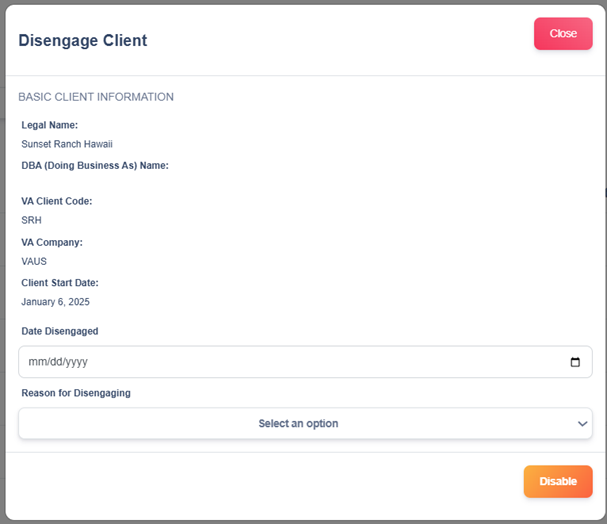
- In the dialog, confirm the client details shown (Legal Name, DBA, VA Client Code, VA Company, Client Start Date) to ensure you’re working on the correct record.
- Use the date picker to select the date the client should be marked as disengaged (format mm/dd/yyyy).
- Choose the appropriate reason from the Reason for Disengaging dropdown:
- Business Closure / Strike-off
- Business Losses
- Choose to proceed with SCALE
- Client Death
- Client did not push through due to Pricing
- Client Migration
- Client preferred Automation Processing
- Client’s Management Discretion
- FTE Resignation
- Moved to Competitor due to Lack of Service Options
- Moved to Competitor due to Price
- One Time Project Only
- Outsourcing Did Not Work
- Quality of Work/Not Happy with Services
- Unresponsive Client
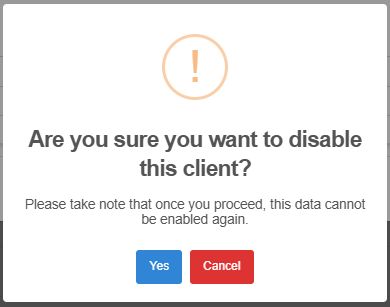
- If you’re ready, click the Disable button in the dialog to proceed. Then click Yes to verify.
- Check the Client Main View to confirm the client’s status now shows as Disengaged.