
Disabling Contract Record
- Go to Contract Main View and locate the contract you want to disable.

- Click the Disable button next to the client record. This opens the Disable Contract dialog.
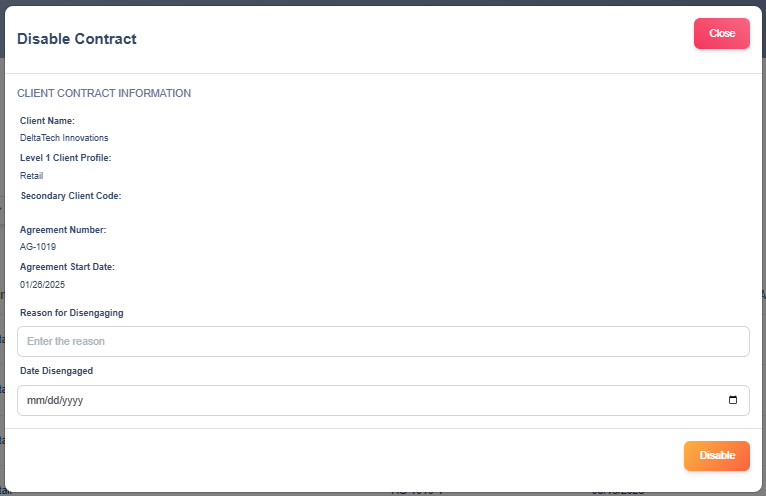
- In the dialog, confirm the client details shown (Client Name, Level 1 Client Profile, Secondary Client Code, Agreement Number, Agreement Start Date) to ensure you’re working on the correct record.
- Use the date picker to select the date the contract should be marked as disengaged (format mm/dd/yyyy).
- In the Reason for Disengaging field enter the reason the contract is disengaged.
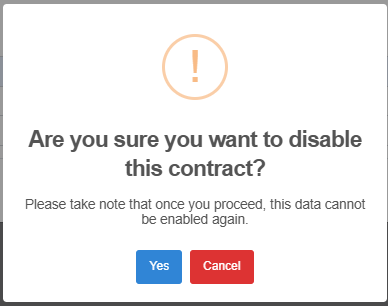
- If you’re ready, click the Disable button in the dialog to proceed. Then click Yes to verify.
- Check the Contract Main View to confirm the client’s status now shows as Disabled.