
The Employee Assignment Main View (EE-A) module serves as a centralized interface for managing and tracking employee assignments across the organization. It captures essential data such as the employee’s name, VA employee ID, job title or position, company employment type, employment status, cohort affiliation, membership type, effective and end dates, and current assignment status—whether Active or Inactive.
Employee Assignment Main View
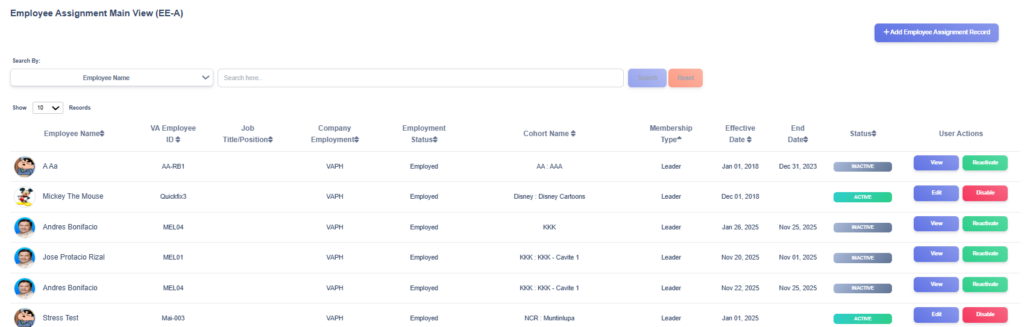
The Employee Assignment Main View presents users with a searchable and sortable table containing all employee assignment records stored in the EMD. Each record includes key details such as the employee’s name, VA employee ID, job title or position, company employment type, and employment status. It also displays the cohort name to which the employee is assigned, their membership type within that cohort, the effective and end dates of the assignment, the current status of the record (Active or Disabled), and available user actions for managing the assignment.
This page serves as the central hub for managing employee-to-cohort relationships and assignment timelines.
Record Status
Each assignment includes a Status column that indicates its current state:
- Active – The assignment is currently in effect and can be edited or updated.
- Inactive – The assignment is no longer active but retained in the system for historical tracking and audit purposes.
User Actions
For each employee assignment listed, users are provided with several action buttons to manage assignment data:
- Edit – Allows modifications to active assignment records, such as updating cohort affiliation, membership type, or assignment dates.
- Disable – Marks an active assignment as disabled, preserving it for historical tracking and reporting.
- View – Opens a disabled assignment record in read-only mode, ensuring historical data is retained for audit or reference.
- Reactivate – Restores a disabled assignment to active status, allowing further updates and cohort reassignments.
This interface ensures streamlined oversight of employee assignments, making it easy for administrators to manage cohort memberships, employment types, and assignment timelines with clarity and efficiency.
New Assignment Record
1) Open the Employee Assignment Form
- From the Employee Assignment Main View, click + Add Employee Assignment (top right).
2) Complete all required fields (and optional fields as needed).
- Cohort name* — Open the dropdown and Select the cohort you want to assign an employee.
- Employee name* — Open the dropdown and Select the employee you want to assign to the cohort.
- Membership type* — Select from the dropdown if the employee is assigned as Member or Leader.
- Role name — Enter the role title if applicable (optional).
- Assignment effective date* — Click the date field and select the start date in mm/dd/yyyy format.
- When all required fields are filled, click Save (bottom right) to create the cohort record.

3) After saving
- The system should confirm successful.
- Newly added record should appear in the Employee Assignment Main View — use search or filters to find it.