
The Employee Reports & Analytics module allows users to generate customized reports based on employee data. This section offers different types of reports designed to help users monitor employee activity, performance, growth and overall data management.
Here are the reports you can generate in the Reports & Analytics section:
- Employee Master List –a comprehensive report of all employees in the system. It includes sensitive information such as compensation and allowance details. For security and confidentiality, this report can only be generated by EMD Managers.
- Company Directory – is essentially the same as the Employee Master List, but it excludes all sensitive information. This makes it a practical tool for general reference, allowing users to view employee details without exposing confidential data. This report can be generated by EMD Managers, EMD Team Leaders and EMD Associate.
- The Employee Growth (EE‑G) – tracks the progression of an employee within the company. It provides visibility into key milestones such as regularization, promotions, and salary increases. Essentially, this report monitors changes in both compensation and position, making it a valuable tool for HR and management to evaluate career development, reward structures, and workforce planning. Only EMD Managers can generate this report.
[Download Sample EE‑G Report] – This sample illustrates employee progression data, including promotions, regularization, and salary changes.
How to Generate a Report
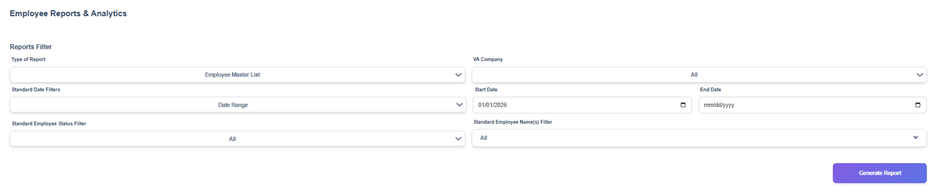
- Open the Employee Reports & Analytics page by navigating through the side panel on the EMD homepage.
- Click the Type of Report dropdown and select the report you want (e.g., Employee Master List, Company Directory, or Employee Growth (EE-G)).
- Choose a VA Company from the right-hand dropdown (the default is All). Select a specific VA company to narrow results.
- Pick a Standard Date Filter:
- Click the Standard Date Filters dropdown and choose a quick option such as Today, This Week, This Month, Last Year, or Date Range.
- If you choose a quick option (e.g., This Month), the module will automatically set the start/end dates for that period.
- If you selected Date Range (or prefer custom dates), use the Start Date and End Date fields to enter the exact range.
- The Start Date is set to default (01/01/2025) — update it if you need a different range.
- Pick a Standard Employee Status Filter (the default is All). Select Active or Inactive narrow results.
- In the Standard Employee Name(s) Filter (the default is All), you can select specific employees to be included in the report generation.
- After your filters are set, click the Generate Report button (bottom-right).
- Review the generated report: the system will generate an Excel file, which is saved in your Downloads folder.